Monday, July 20, 2015

ORA-17008 when running the RCU

Problem:

When running the RCU (Repository Creation Utility) to create the SOA Suite 12c schemas, you may get the following error:
ORA-17008: Closed ConnectionFile:/u01/share/oracle/middleware/products/fmw1213/soa/common/sql/soainfra/sql/oracle/createschema_soainfra_oracle_LARGE.sql
Statement: ALTER TABLE B2B_DATA_STORAGE ADD CONSTRAINT B2B_DATA_STORAGE_PK PRIMARY KEY (ID)...


Analysis:

Check out the RCU log file /u01/share/oracle/middleware/products/fmw1213/oracle_common/rcu/log/logdir.2015-07-20_11-02/rcu.log and you will find the same error in the logs:
2015-07-20 11:11:38.953 ERROR rcu: oracle.sysman.assistants.rcu.backend.action.AbstractAction::handleNonIgnorableError: Received Non-Ignorable Error: ORA-17008: Closed ConnectionFile:/u01/share/oracle/middleware/products/fmw1213/soa/common/sql/soainfra/sql/oracle/createschema_soainfra_oracle_LARGE.sql
Statement:ALTER TABLE B2B_DATA_STORAGE
    ADD CONSTRAINT B2B_DATA_STORAGE_PK PRIMARY KEY (ID)

2015-07-20 12:47:39.352 ERROR rcu: oracle.sysman.assistants.common.dbutil.jdbc.JDBCEngine::onException: SQLException: Closed Connection
java.sql.SQLRecoverableException: Closed Connection
        at oracle.jdbc.driver.PhysicalConnection.getMetaData(PhysicalConnection.java:3131)
        at...
However, the error is not due to the SQLException: Closed Connection you see above.

Now check out the next log file /u01/share/oracle/middleware/products/fmw1213/oracle_common/rcu/log/logdir.2015-07-20_11-02/soainfra.log and view its contents:
2015-07-20 11:11:38.949 rcu:Extracted SQL Statement: [CREATE TABLE B2B_DATA_STORAGE
(
    VALUE_SELECTOR VARCHAR2(256),
    CLOB_VALUE CLOB,
    BLOB_VALUE BLOB,
    DATA_SIZE NUMBER(10,0),
    ATTRIBUTE1 VARCHAR2(256),
    ATTRIBUTE2 VARCHAR2(256),
    LABEL VARCHAR2(256),
    DOCUMENT_ID VARCHAR2(200),
    JOB_ID VARCHAR2(128),
    ID VARCHAR2(256) NOT NULL,
    CPST_INST_CREATED_TIME TIMESTAMP DEFAULT systimestamp-30,
    IS_OBFUSCATED NUMBER(1)
)
 PARTITION BY RANGE (CPST_INST_CREATED_TIME)
 INTERVAL(NUMTOYMINTERVAL(1, 'MONTH'))
 (PARTITION p0 VALUES LESS THAN (TO_DATE('1-2-2007', 'DD-MM-YYYY')))
]
2015-07-20 11:11:38.949 rcu:Statement Type: 'DDL Statement'
JDBC SQLException - ErrorCode: 439SQLState:67000 Message: ORA-00439: feature not enabled: Partitioning

JDBC SQLException handled by error handler
Here, you can clearly see an ORA-00439: feature not enabled: Partitioning error when the actual DDL statement is executed. This error indicates that partitioning is not enabled in the database that we are trying to run the RCU against.


Solution:

1. In our case, during the RCU installation wizard, do not choose the database profile value of LARGE, and instead choose SMALL (note that this value is case sensitive).

Alternatively, we could upgrade the database to support partitioning.


2. Check all logs (not just the rcu.log) in the RCU logs directory.


Applicable Versions:
  • Oracle Repository Creation Utility (RCU) 12c (12.1.3)
  • Oracle SOA Suite 12c (12.1.3)


Wednesday, July 8, 2015

BEA-090898 Ignoring the trusted CA certificate in OSB 11g due to "Unsupported OID in the AlgorithmIdentifier"

Problem:

Testing a service in the OSB console resulted in the following error in our osb_server1.out log file:
<Jul 6, 2015 2:00:27 PM EDT> <Notice> <Security> <BEA-090898> <Ignoring the trusted CA certificate "CN=Entrust Root Certification Authority - G2,OU=(c) 2009 Entrust\, Inc. - for authorized use only,OU=See www.entrust.net/legal-terms,O=Entrust\, Inc.,C=US". The loading of the trusted certificate list raised a certificate parsing exception PKIX: Unsupported OID in the AlgorithmIdentifier object: 1.2.840.113549.1.1.11.>

<Jul 6, 2015 2:00:27 PM EDT> <Notice> <Security> <BEA-090898> <Ignoring the trusted CA certificate "CN=thawte Primary Root CA - G3,OU=(c) 2008 thawte\, Inc. - For authorized use only,OU=Certification Services Division,O=thawte\, Inc.,C=US". The loading of the trusted certificate list raised a certificate parsing exception PKIX: Unsupported OID in the AlgorithmIdentifier object: 1.2.840.113549.1.1.11.>

<Jul 6, 2015 2:00:27 PM EDT> <Notice> <Security> <BEA-090898> <Ignoring the trusted CA certificate "CN=T-TeleSec GlobalRoot Class 3,OU=T-Systems Trust Center,O=T-Systems Enterprise Services GmbH,C=DE". The loading of the trusted certificate list raised a certificate parsing exception PKIX: Unsupported OID in the AlgorithmIdentifier object: 1.2.840.113549.1.1.11.>

<Jul 6, 2015 2:00:27 PM EDT> <Notice> <Security> <BEA-090898> <Ignoring the trusted CA certificate "CN=T-TeleSec GlobalRoot Class 2,OU=T-Systems Trust Center,O=T-Systems Enterprise Services GmbH,C=DE". The loading of the trusted certificate list raised a certificate parsing exception PKIX: Unsupported OID in the AlgorithmIdentifier object: 1.2.840.113549.1.1.11.>

<Jul 6, 2015 2:00:27 PM EDT> <Notice> <Security> <BEA-090898> <Ignoring the trusted CA certificate "CN=GlobalSign,O=GlobalSign,OU=GlobalSign Root CA - R3". The loading of the trusted certificate list raised a certificate parsing exception PKIX: Unsupported OID in the AlgorithmIdentifier object: 1.2.840.113549.1.1.11.>

<Jul 6, 2015 2:00:27 PM EDT> <Notice> <Security> <BEA-090898> <Ignoring the trusted CA certificate "OU=Security Communication RootCA2,O=SECOM Trust Systems CO.\,LTD.,C=JP". The loading of the trusted certificate list raised a certificate parsing exception PKIX: Unsupported OID in the AlgorithmIdentifier object: 1.2.840.113549.1.1.11.>

<Jul 6, 2015 2:00:27 PM EDT> <Notice> <Security> <BEA-090898> <Ignoring the trusted CA certificate "CN=VeriSign Universal Root Certification Authority,OU=(c) 2008 VeriSign\, Inc. - For authorized use only,OU=VeriSign Trust Network,O=VeriSign\, Inc.,C=US". The loading of the trusted certificate list raised a certificate parsing exception PKIX: Unsupported OID in the AlgorithmIdentifier object: 1.2.840.113549.1.1.11.>

<Jul 6, 2015 2:00:27 PM EDT> <Notice> <Security> <BEA-090898> <Ignoring the trusted CA certificate "CN=KEYNECTIS ROOT CA,OU=ROOT,O=KEYNECTIS,C=FR". The loading of the trusted certificate list raised a certificate parsing exception PKIX: Unsupported OID in the AlgorithmIdentifier object: 1.2.840.113549.1.1.11.>

<Jul 6, 2015 2:00:27 PM EDT> <Notice> <Security> <BEA-090898> <Ignoring the trusted CA certificate "CN=GeoTrust Primary Certification Authority - G3,OU=(c) 2008 GeoTrust Inc. - For authorized use only,O=GeoTrust Inc.,C=US". The loading of the trusted certificate list raised a certificate parsing exception PKIX: Unsupported OID in the AlgorithmIdentifier object: 1.2.840.113549.1.1.11.>

Solution:

1. Enable the "Use JSSE SSL" option on the OSB managed servers (e.g., osb_server1, osb_server2).


References:


Applicable Versions:
  • Oracle Service Bus (OSB) 11g (10.3.6+)


Sunday, July 5, 2015

Provisioning an AWS instance for general Oracle software

This blog post describes how to provision a barebones Linux server from Amazon Web Services (AWS) for the purpose of installing general Oracle software.

This instructions optionally include adding an extra mount point, enabling NFS, and installing VNC for remote GUI connectivity.


Create an EC2 Instance

1. Login to the AWS Management Console at:

https://us-west-2.console.aws.amazon.com/console/home

2. Click on "EC2" on the left-hand menu
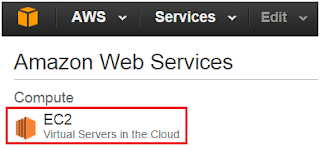


3. Navigate to Instances > Launch Instance

4. "Select" the Red Hat Enterprise Linux 7.1 instance type


5. Select an instance type (e.g., t2.medium)


6. Click on "Next: Configure Instance Details"


7. Keep all defaults

8. Click on "Next: Add Storage"


9. Click on "Add New Volume"

10. Enter the size of "10" for 10GB


11. Click on "Next: Tag Instance"

12. Enter the name of your instance (just a name, e.g., "My Oracle Server")


13. Click on "Next: Configure Security Group"


14. Provide a Security Group name and description, and add the firewall rules you want to allow


15. Click on "Review and Launch"



16. Click on "Launch" after reviewing the settings


17. Enter a new key pair name, download key pair, and click on "Launch Instances"
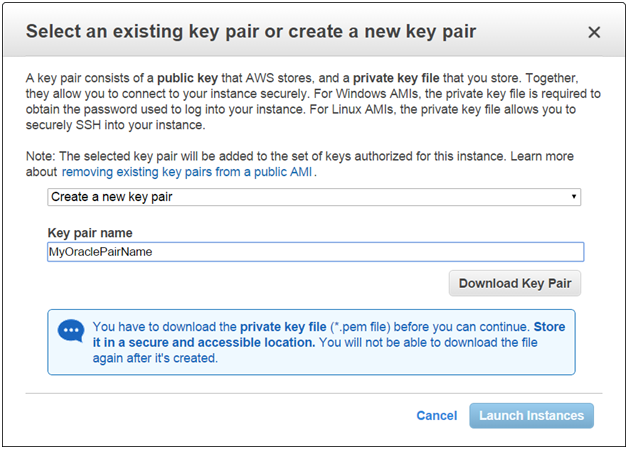


18. Click on "View Instances" and the instance should be up in a few minutes



Create an Elastic IP

19. Click on "Elastic IP" on the left-hand menu

20. Click on "Allocate New Address"


21. Click on "Yes, Allocate"

22. Click on "Close"

23. Right-click on the IP address and select "Associate Address"

24. Click on the Instance field and select your EC2 instance from the list


Create a Putty PPK File for SSH Access

25. Follow these instructions to convert the downloaded .pem file to a Putty compatible .ppk file


26. Login to the server via Putty or equivalent SSH client as the "ec2-user"

27. Then type sudo su - to login as the root user


Setup the Linux Server

28. Install some basic Oracle required packages

yum install telnet
yum install wget
yum install gcc
yum install gcc-c++
yum install glibc-devel
yum install libaio
yum install libaio-devel
yum install sysstat
yum install libstdc++-devel
yum install compat-libstdc++
yum install compat-libstdc

29. Define a hostname

hostname oradev.raastech.com

30. Type the following to get your local IP address

ifconfig -a | grep broadcast | awk '{print $2}'

31. Edit the local hosts by typing vi /etc/hosts file and manually add your public and private IP addresses and a hostname of your choosing

52.27.XXX.XXX    oradev-ext.raastech.com   oradev-ext
172.31.XXX.XXX   oradev.raastech.com       oradev

32. Create the Oracle unix user

groupadd oinstall
groupadd dba
useradd nobody
useradd -c "Oracle Software Owner" -g oinstall -G dba oracle
passwd oracle

33. Edit the profile for both the 'root' and 'oracle' users to something more readable

vi /root/.bash_profile /home/oracle/.bash_profile

34. Add the following and save the file

export PS1="\u@\h:\$PWD> "
alias ls='ls'
alias ll='ls -l'

35. Edit the sysctl file

vi /etc/sysctl.conf

36. Add the following and save the file, updating the hostname and domainname accordingly

# Controls the maximum shared segment size, in bytes
kernel.shmmax = 68719476736
# Controls the maximum number of shared memory segments, in pages
kernel.shmall = 4294967296
# Controls the default maxmimum size of a mesage queue
kernel.msgmax = 65536
# Controls the maximum size of a message, in bytes
kernel.msgmnb = 65535
# Semaphores: semmsl, semmns, semopm, semmni
kernel.shmmni = 4096
kernel.sem = 256 32000 100 142
fs.file-max = 6815744
fs.aio-max-nr = 1048576
kernel.hostname   = oradev.raastech.com
kernel.domainname = raastech.com
net.ipv4.ip_local_port_range = 9000 65500
net.core.rmem_default=262144
net.core.wmem_default=262144
net.core.rmem_max=4194304
net.core.wmem_max=1048576
kernel.msgmni = 2878

37. Load the sysctl settings

sysctl -p

38. Edit the configuration for the pam_limits module

vi /etc/security/limits.conf

39. Add the following to the bottom and save the file

oracle  soft    nofile  4096
oracle  hard    nofile  65536
oracle  soft    nproc   2047
oracle  hard    nproc   16384


Add an Extra 10GB Mount Point (optional)

40. Create a mount point

mkdir -p /u01
chown oracle:oinstall /u01

41. Add the extra EC2 volume and mount it

echo "View available disks"
lsblk

echo "Confirm that /dev/xvdb is a 'data' volume"
file -s /dev/xvdb

echo "Create file system, all data will be lost in it"
mkfs -t ext4 /dev/xvdb

echo "Backup fstab and edit it"
cp /etc/fstab /etc/fstab.orig.20150528
echo "/dev/xvdb       /u01   ext4    defaults,nofail        0       2" >> /etc/fstab

echo "Mount /u01"
mount /u01
chown oracle:oinstall /u01

echo "Confirm that /u01 is mounted and available"
df -m


Install an NFS Server (optional)

42. Install the necessary NFS packages

yum install nfs-utils

43. Create a share folder

mkdir -p /u01/share
chown oracle:oinstall /u01/share

44. Edit the /etc/exports file

vi /etc/exports

45. Add the following and save the file (the hostnames denote which clients should have access)

/u01/share oraclient1.raastech.com(no_root_squash,rw,sync)
/u01/share oraclient2.raastech.com(no_root_squash,rw,sync)

46. Start the NFS server

service rpcbind start
service nfs start

47. Open port 2049 on the local firewall to allow remote NFS access to other EC2 instances

service firewalld start
firewall-cmd --permanent --zone=public --add-port=2049/tcp
firewall-cmd --reload


Configure the NFS Clients (optional)

48. On the client servers, run the following commands

yum install nfs-utils
telnet soadb.raastech.com 2049
mkdir -p /u01/share
chown oracle:oinstall /u01/share
sudo echo "oradev.raastech.com:/u01/share   /u01/share      nfs     defaults        0 0" >> /etc/fstab
mount /u01/share
df -m


Install and Configure the VNC Server (optional)

49. Install the required VNC packages

yum groupinstall 'Server with GUI'
yum install tigervnc-server
yum install xclock

50. Open up the VNC port 5901 for remote access

service firewalld start
firewall-cmd --permanent --zone=public --add-port=5901/tcp
firewall-cmd --reload

51. Start the VNC server

vncserver :1 -geometry 1280x720 -depth 16

52. Edit the profile script

vi /root/.bash_profile

53. Add the following and save the file

xhost +

54. Edit the profile script of additional unix users that will require GUI access

vi /home/oracle/.bash_profile

55. Add the following

export DISPLAY=:1

56. Connect via a VNC client such TightVNC on port 1


Applicable Versions:
  • Amazon Web Services (2015)
  • Red Hat Enterprise Linux 7.1 64-bit


Saturday, July 4, 2015

"Inactive Connection Timeout" and "Remove Infected Connections Enabled" parameters in WebLogic Server

Have you ever wondered what the Inactive Connection Timeout and Remove Infected Connections Enabled settings do in Oracle WebLogic Server 11g/12c? They help address some of the issues your application may be experiencing as it pertains to data sources.

Accessing these parameters is done by simply navigating to Data Sources > [data source name] > Configuration > Connection Pool > Advanced.


Inactive Connection Timeout

Consider this parameter as a short term solution if you suspect your Java code having a connection leak. For example, a connection may be opened in the code but never closed. Usually you will see the number of 'Active Connections' increasing in the WebLogic Admin Console over time. Setting this parameter will force WebLogic Server to release the connection back to the connection pool after X seconds of inactivity.

The Oracle documentation states:
The number of inactive seconds on a reserved connection before WebLogic Server reclaims the connection and releases it back into the connection pool.
You can use the Inactive Connection Timeout feature to reclaim leaked connections - connections that were not explicitly closed by the application. Note that this feature is not intended to be used in place of properly closing connections.
When set to 0, the feature is disabled.
When this parameter is triggered, the following will appear in the logs:
####<Jul 1, 2015 8:30:47 AM EDT> <Warning> <JDBC> <soahost1> <soa_server1> <[ACTIVE] ExecuteThread: '0' for queue: 'weblogic.kernel.Default (self-tuning)'> <<WLS Kernel>> <> <> <1435753847302> <BEA-001153> <Forcibly releasing inactive/harvested connection "[weblogic.jdbc.wrapper.JTAConnection_weblogic_jdbc_wrapper_XAConnection_oracle_jdbc_driver_LogicalConnection-SOADataSource-9054, oracle.jdbc.driver.LogicalConnection@1a72fd3f]" back into the data source connection pool "SOADataSource", currently reserved by: java.lang.Exception        at weblogic.jdbc.common.internal.ConnectionEnv.setup(ConnectionEnv.java:356)        at weblogic.common.resourcepool.ResourcePoolImpl.reserveResource(ResourcePoolImpl.java:364)        at weblogic.common.resourcepool.ResourcePoolImpl.reserveResource(ResourcePoolImpl.java:330)        at weblogic.jdbc.common.internal.ConnectionPool.reserve(ConnectionPool.java:469)


Remove Infected Connections

Consider this parameter if you simply don't trust your application and/or are experiencing strange connection issues. When your Java application closes a connection, WebLogic Server will actually close it forcibly instead of releasing it back in the pool.

The Oracle documentation states:
Specifies whether a connection will be removed from the connection pool after the application uses the underlying vendor connection object.
If you disable removing infected connections, you must make sure that the database connection is suitable for reuse by other applications.
When set to true (the default), the physical connection is not returned to the connection pool after the application closes the logical connection. Instead, the physical connection is closed and recreated.
When set to false, when the application closes the logical connection, the physical connection is returned to the connection pool and can be reused by the application or by another application.
When this parameter is triggered, the following will appear in the logs:
java.sql.SQLException: Connection closed        at weblogic.jdbc.wrapper.JTAConnection.getXAConn(JTAConnection.java:213)        at weblogic.jdbc.wrapper.JTAConnection.checkConnection(JTAConnection.java:84)        at weblogic.jdbc.wrapper.JTAConnection.checkConnection(JTAConnection.java:74)        at weblogic.jdbc.wrapper.Connection.preInvocationHandler(Connection.java:100)


Applicable Versions:
  • Oracle WebLogic Server 11g/12c


Wednesday, July 1, 2015

OSB 11g deployment failing with unexpected error in com.bea.wli.config.deployment.server.ServerRestartRequiredException

Problem:

Are you getting the following error when trying to deploy an OSB project through Ant?

[java] Unexpected error: com.bea.wli.config.deployment.server.ServerRestartRequiredException
[java] No stack trace available.
[java] Problem invoking WLST - Traceback (innermost last):
[java]   File "/home/oracle/deploy/osb/import_deploy.py", line 257, in ?
[java]   File "/home/oracle/deploy/osb/import_deploy.py", line 178, in importToALSBDomain
[java] com.bea.wli.config.deployment.server.ServerRestartRequiredException: Server(s) require restart before session can be activated.
[java]     at com.bea.wli.config.deployment.server.ServerDeploymentReceiver$1.run(ServerDeploymentReceiver.java:225)
[java]     at weblogic.security.acl.internal.AuthenticatedSubject.doAs(AuthenticatedSubject.java:321)
[java]     at weblogic.security.service.SecurityManager.runAs(SecurityManager.java:120)
[java]     at com.bea.wli.config.deployment.server.ServerDeploymentReceiver.prepare(ServerDeploymentReceiver.java:213)
[java]     at weblogic.deploy.service.internal.targetserver.DeploymentReceiverCallbackDeliverer.doPrepareCallback(DeploymentReceiverCallbackDeliverer.java:171)
[java]     at weblogic.deploy.service.internal.targetserver.DeploymentReceiverCallbackDeliverer.access$000(DeploymentReceiverCallbackDeliverer.java:13)
[java]     at weblogic.deploy.service.internal.targetserver.DeploymentReceiverCallbackDeliverer$1.run(DeploymentReceiverCallbackDeliverer.java:46)
[java]     at weblogic.work.SelfTuningWorkManagerImpl$WorkAdapterImpl.run(SelfTuningWorkManagerImpl.java:545)
[java]     at weblogic.work.ExecuteThread.execute(ExecuteThread.java:256)
[java]     at weblogic.work.ExecuteThread.run(ExecuteThread.java:221)

Solution:

1. Restart the OSB managed servers and try again.


Applicable Versions:
  • Oracle Service Bus (OSB) 11g (10.3.6+)